Teams
Teams let you collaborate with others. Share presentations and themes, edit content together in real time, and coordinate during live events.
Working as a Team
The selector in the header, next to the logo, moves between your own content, shown under your name, and your teams. A team's pages live under its own address: its Presentations, Events and Themes show only the team's items, and anything you create there is shared with the team from the start. Events and Themes are in the menu only while you are in a team, because events and custom themes belong to teams; the top-level Presentations page is your own content, and the Themes page outside a team lists the themes of all your teams. If you belong to just one team, you land in it after signing in.
A presentation's editor and controller are in a context too. Opened from a team's pages, their address is the team's, and the selector moves the page to another team the presentation is shared with; opened from your own content, the address is the top-level one, your own context, whoever's the presentation is. The context a presentation is edited in decides whether a song that needs a licence can be added to it — see Inserting Bible Passages and Songs.
The selector also opens the Teams page, where teams are created and joined.
The Dashboard
A team's page is its dashboard, where you land after choosing the team (and after signing in, if it is your only team). It shows the team's most recently edited presentations (with edit, control and view links), its events with their channels, the state of its bulletin with the QR code, and the team at a glance: members, pending invitations, the default Bible translation, the CCLI licence number, and when the team chat was last used. Each section shows the latest few, with a See all link to the full page. Members, invitations and settings are on the team's Team settings page.
Your own content has a dashboard too, My content: choose your name in the selector. It shows your most recently edited presentations and lists the teams you belong to, each opening that team's dashboard. If you belong to more than one team (or none), this is where you land after signing in.
Creating a Team
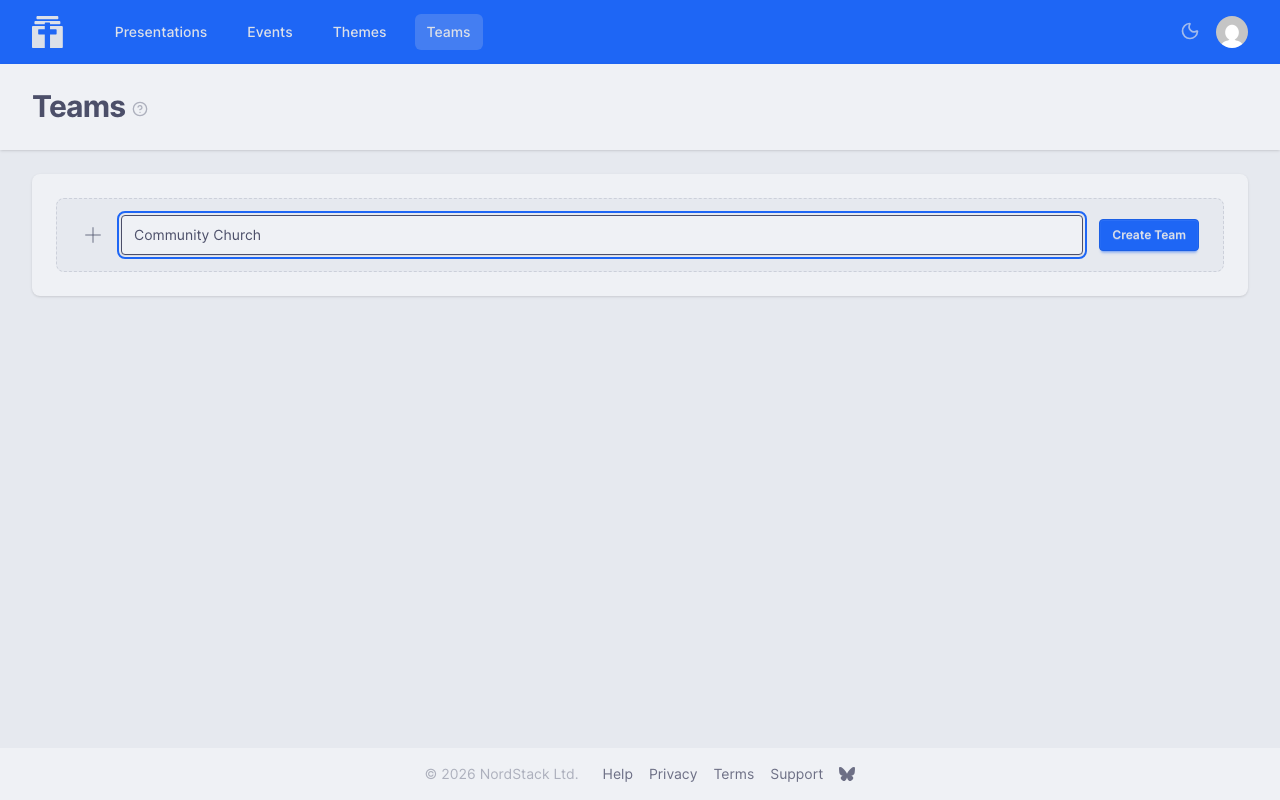
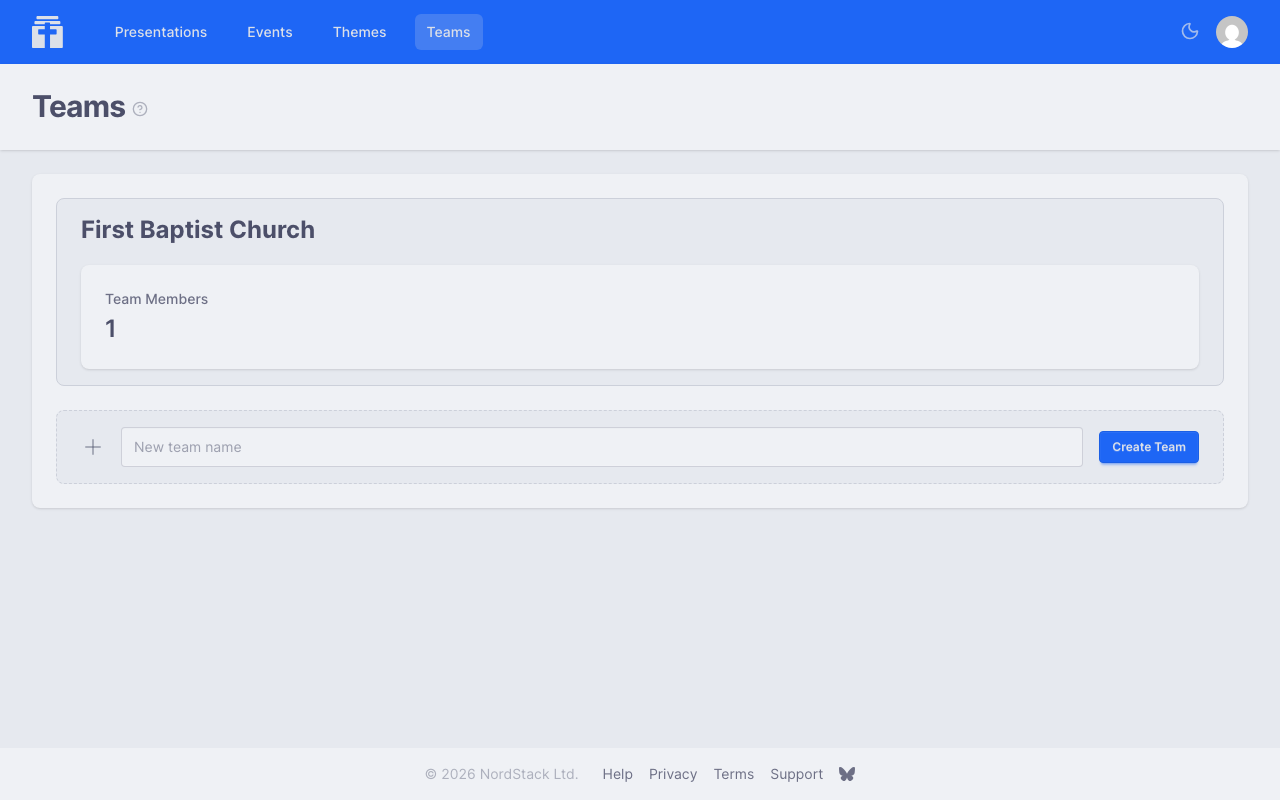
Go to the Teams page, type the new team's name and click Create Team — you'll automatically be the team admin. A team belongs to a church: choose one you're an admin of, or start a new church, named as you choose or, left empty, after the team.
Churches
Churches, their admins and the free and paid plans have a page of their own: Churches and Plans.
Inviting Members
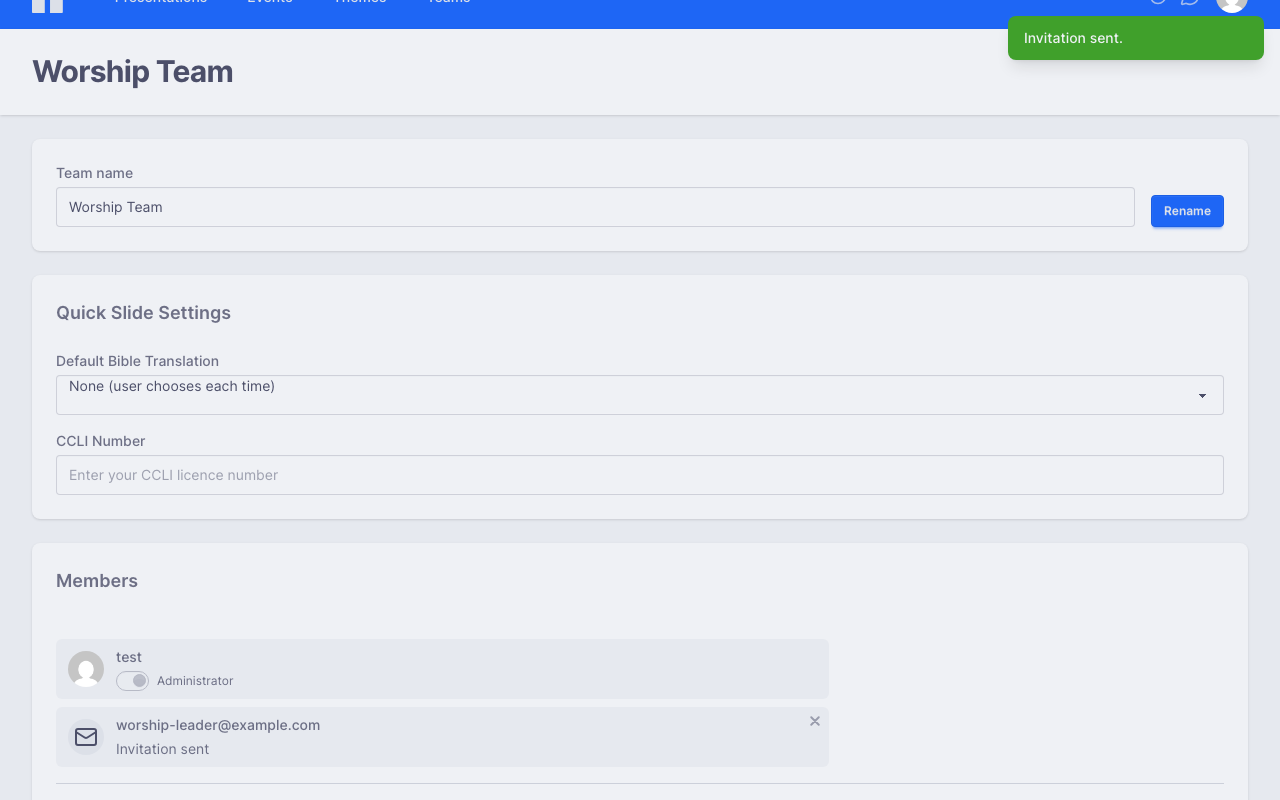
As an admin, you can invite people by email address from the team's Team settings page (linked from the team's dashboard). They'll receive an invitation that appears on their Invitations page when they log in. If they don't have an account yet, the invitation will be waiting for them when they sign up.
Team Roles
Teams have two roles:
- Admin — can invite and remove members, rename the team, manage settings, and edit shared themes. The team creator is the first admin.
- Member — can view and edit shared presentations, use shared themes, participate in team chat, and access team events.
Sharing Presentations and Themes
When you share a presentation or theme with a team, all members gain access. For presentations, every team member can view, edit, and present. Themes shared with a team appear in the theme picker for all members.
A presentation can be shared with multiple teams at once, and you can remove it from a team at any time. If the presentation is used in any of that team's events, Chapel Screen will warn you before removing it, and removing it takes it off those events too. A quick slide stays with its event: convert it to a presentation or remove it on the event page.
Real-Time Collaborative Editing
When multiple team members open the same presentation, they can edit it simultaneously. Each person gets their own cursor colour and a name label showing where they are working, and changes appear instantly — no need to save or refresh.
This works even during a live presentation. If someone makes a change while you're presenting, the audience sees the update immediately on the viewer.
Bulletin
The bulletin has a page of its own: Bulletin.
Team Chat
Each team has a built-in chat that's accessible from anywhere in the app via the chat icon. You can:
- Send text messages to your team
- Edit or delete your own messages, and add emoji reactions to any message — on a computer the buttons appear when you point at a message; on a phone or tablet they sit under each message
- See when each message was posted — the time appears beside the sender's name, days are separated by "Today", "Yesterday" or the date, and hovering a time shows the full date
If you're in multiple teams, a team selector lets you switch between conversations. A red number on the chat icon counts unread messages, and a green dot means someone else on your teams is online. Hover over the icon to see how many.
Team Settings
Team admins can configure additional settings:
Bible Translations
- Default Bible translation — used for quick slides, and for Bible passages inserted into a presentation shared with the team, when no translation is specified (before each member's own default)
- Other translations in search — translations whose chapters the Add Slides search on the team's event pages shows beside the default translation's, grouped by language; with none ticked, each member's own choice from their profile applies; the translations in each language are listed alphabetically. How the search reads what you type is explained under Searching for Bible passages.
Christian Copyright Licensing International (CCLI)
The CCLI licence number is shown on song slides for copyright compliance, in the footer beside the song's copyright notice.
Deleting a Team
Only the original creator of a team can delete it. Deleting a team removes all member access, shared resource links, and team events.