Custom Themes
Themes control how your presentations look — colours, fonts, backgrounds, and decorative images. You can use the built-in system themes or create your own.
System Themes
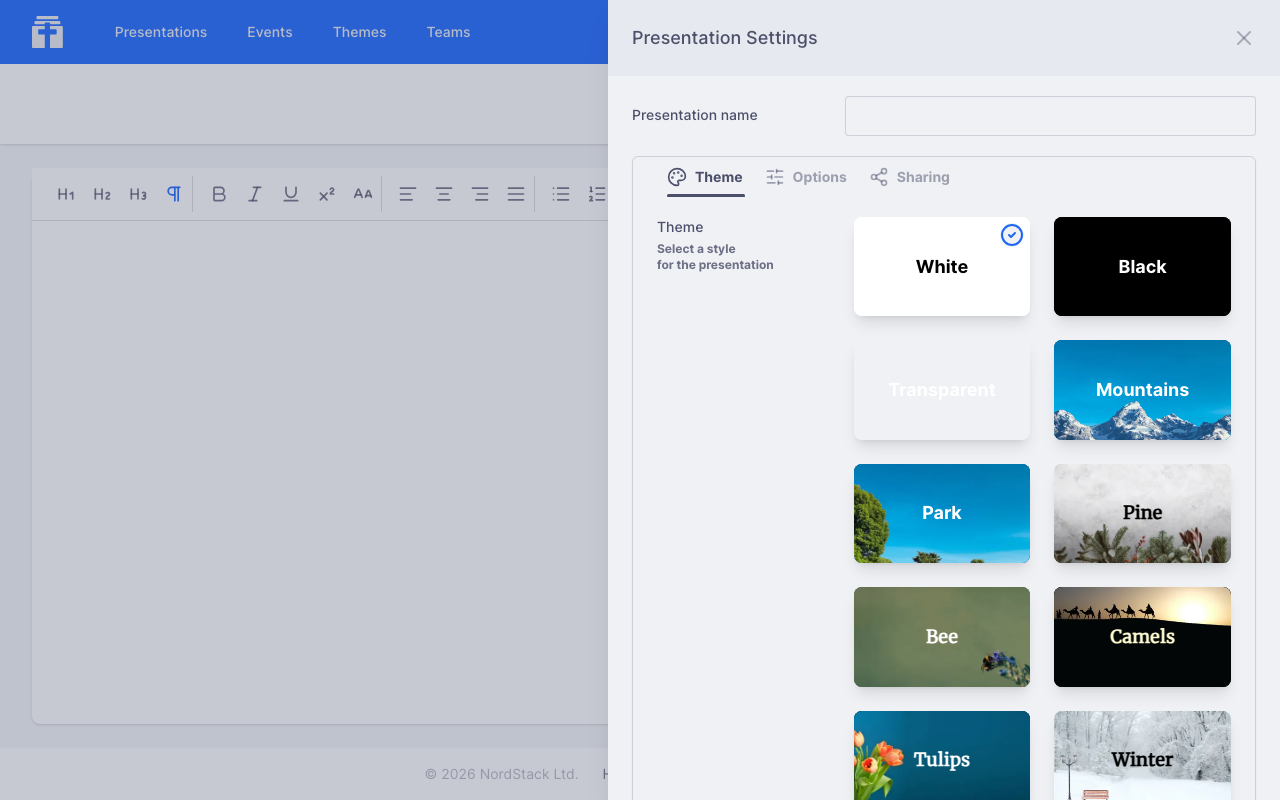
Chapel Screen ships with a set of system themes that are always available. These cover common styles and are a good starting point. You can apply any system theme to your presentations without creating anything. Five of them move: Aurora and Ember have soft colour slowly drifting or glowing behind the words, and Stream, Candlelight and Water play a silent film loop, a forest brook, candles in a dark church and running water close up. The motion is gentle and loops without a break; it is still for anyone whose device asks for reduced motion.
Every season and holiday of the church year has themes of its own, and the picker says which under each tile. Advent has Bethlehem (a star rising over dark hills) and Wreath (an Advent wreath, two candles lit), with Pine and Candlelight; Christmas keeps Red Christmas, Blue Christmas, Star, Pine and Camels, and Camels and Star serve Epiphany too. Lent has Lent (plain purple with a faint cross) and Three Crosses (three crosses on a hill at dusk, for Good Friday as well); Palm Sunday has Palms; Easter has Easter, Tulips and Lilies; Pentecost has Flame and Ember; Harvest and Thanksgiving have Wheat and Autumn; Remembrance has Poppies, with Candlelight. In the picker the Celebrations group runs through the church year, a heading for each occasion and a theme under every one it serves.
Creating a Theme
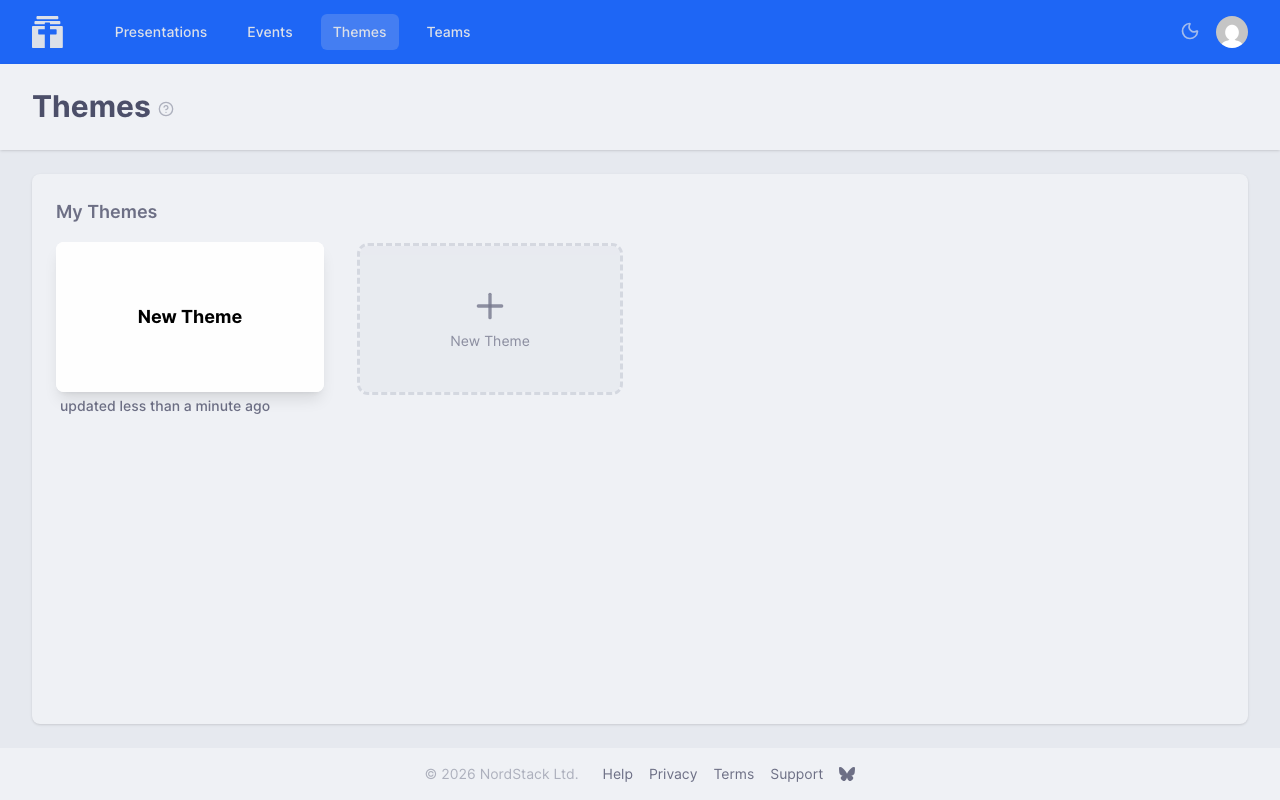
A custom theme belongs to a team, so Themes is in the menu while you are in a team. To create one, go to the team's Themes page and click New Theme, or click New Theme on the Themes page outside a team (which lists the themes of all your teams) and choose the team. Give the theme its name, and the theme editor opens under the team's address, where you can configure every visual aspect of your presentations. Your own presentations can use the themes of any of your teams on the paid plan.
The Theme Editor
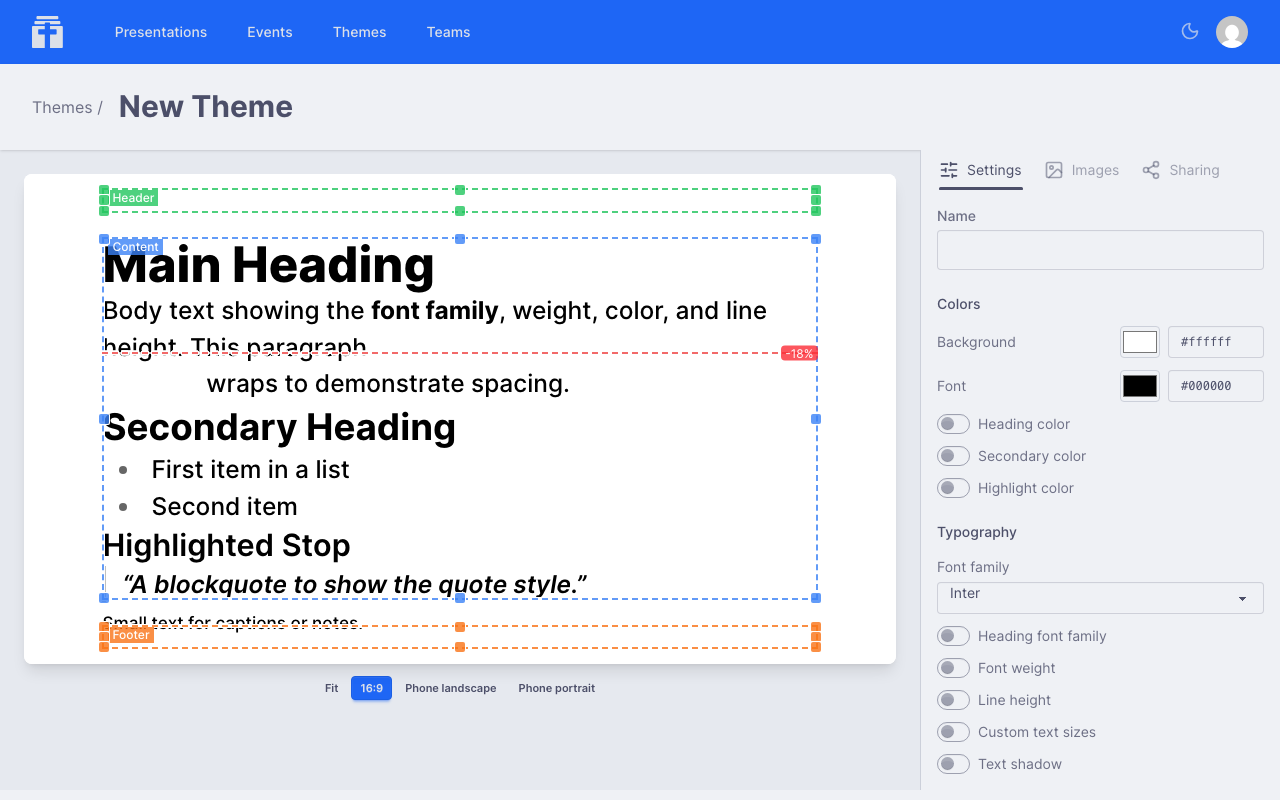
The theme editor has two main tabs:
Settings Tab
Configure the visual properties of your theme:
- Name — give your theme a descriptive name
- Background colour — the base colour behind your content
- Font colour — the main text colour
- Heading colour — a separate colour for headings
- Secondary colour — used for accents and supporting elements
- Highlight colour — used when highlight mode is active
- Font family — the typeface for body text
- Heading font family — a separate typeface for headings
- Font weight and line height — fine-tune text appearance
- Text sizes — small, regular, and large presets
- Text shadow — toggle a subtle shadow for readability over images
- Panel — a box of one colour painted behind the text, with its opacity, a blur of what is behind it, how far it sits in from the screen's edge (the same on every side), how far the text sits in from its edge, its corner radius and an accent stripe along its left edge. A panel places the text, so the viewport settings give way to it. On a channel the panel takes the layout's shape (a band for a lower third, a column for a half), so words sit on a translucent panel over a live stream
- Viewport — define where content appears on screen (x, y, width, height as percentages), with optional header and footer viewports
- Stop line — the dashed line in the preview is where the line being presented sits when slides are continuous. Keep it in the upper part of the viewport (the built-in themes use −30, a fifth of the way down) so the lines to come fill the screen below it and the congregation can read ahead; the line being read is always kept wholly on screen
Images Tab
Themes support up to ten image slots, each with its own position and sizing options:
- Background — fills the entire area behind the content
- Overlay — sits on top of the background, behind the content
- Background video — where video is set up, a silent clip that loops behind every presentation using the theme, uploaded like a video slide; its first frame becomes the background image, and a slider darkens it under the words
- Margins (top, right, bottom, left) — decorative images along the edges
- Corners (top-left, top-right, bottom-left, bottom-right) — decorative images at the corners
For each slot, you can set the sizing mode (cover, contain, or auto), position, and explicit dimensions. Upload images by clicking the slot or dragging a file onto it.
An uploaded image is converted in your browser before it is saved, as an image on a slide is: scaled to at most 2048 pixels and saved as a picture without the file's metadata. An SVG becomes a picture of what it draws, and an animated GIF keeps its first frame. A file that cannot be read as an image, or an image still over 2 MB after shrinking, is refused with a message.
The editor shows a live preview of your theme at multiple aspect ratios, so you can see how it looks on different screens.
Applying a Theme
To apply a theme to a presentation, open the presentation editor and use the theme picker. You'll see both system themes and any custom themes you've created or have access to through your teams.
You can also set a theme when creating quick slides during events, or override the theme per channel.
Sharing Themes with a Team
Themes can be shared with teams, just like presentations. When you share a theme with a team, all members can use it for their presentations. Team admins can also edit shared themes. A theme's look is visible to anyone who sees a presentation that uses it, signed in or not, so your presentations always show as you designed them; only you and the admins of the teams you share the theme with can change it.
Go to the Sharing tab in the theme editor to manage which teams have access.
Custom themes are part of the paid plan. On the free plan a team uses the system themes; if a church leaves the paid plan, its teams' theme pickers still show their custom themes, with a small sparkle, and choosing one shows what the paid plan adds. A theme a presentation already has is never taken away.
Deleting a Theme
Only the theme owner can delete it. If any presentations are currently using the theme, deletion is blocked — the editor will show you which presentations need to be switched to a different theme first.