Getting Started
Chapel Screen is a real-time collaborative presentation platform. You can create presentations, customise them with themes, share them with your team, and project them live — all from your browser.
Creating Your Account
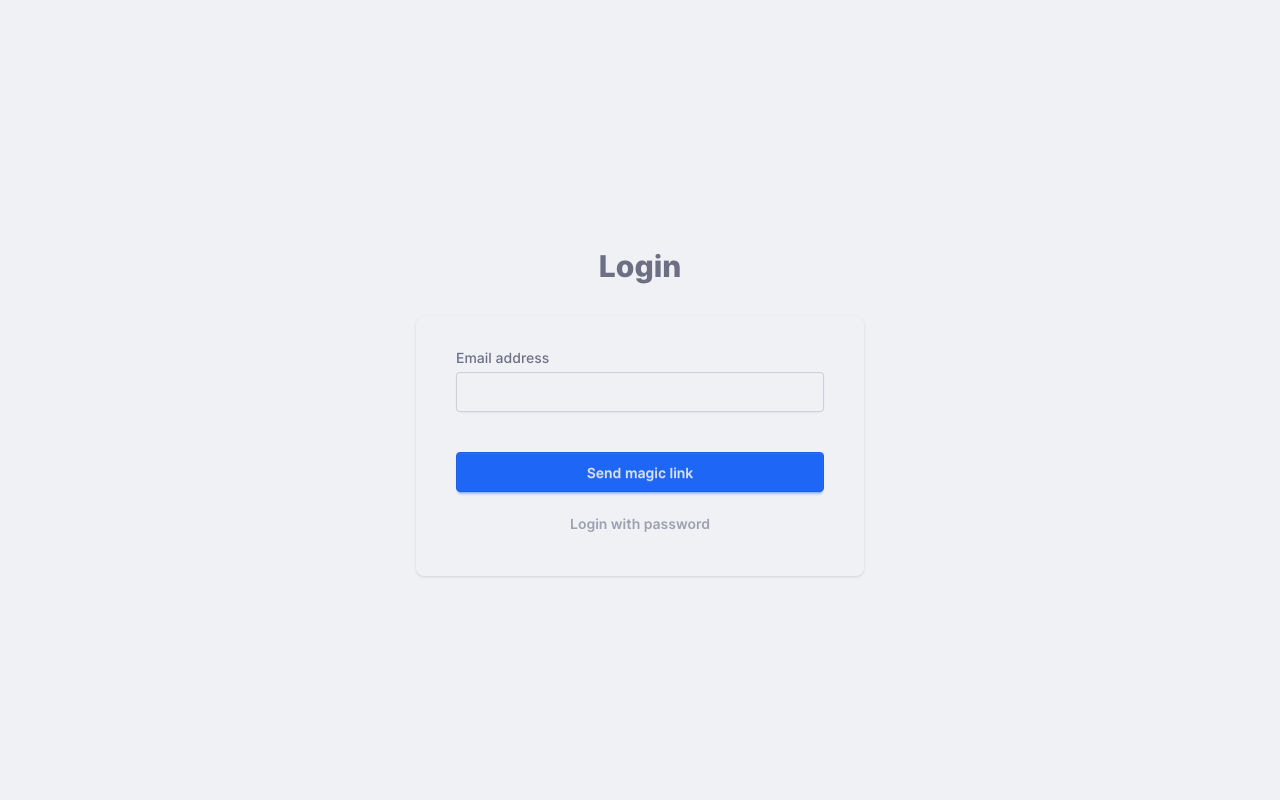
To get started, head to the login page and enter your email address. You'll receive a magic link — just click it to sign in. No password needed.
If you prefer, you can also set a password later from your profile page. Both login methods work side by side.
Your account is free. A church starts on the free plan, with one team; the paid plan adds more teams and channels, custom themes, more video storage, the bulletin and AI assistants, with a 30-day free trial. The open songs and Bible translations, and the import of your own songs, are on both. See Free and Paid Plans and Pricing. To see Chapel Screen before creating an account, watch the live demo: a service playing on a screen that anyone can retheme or put a passage or song on.
Your First Look Around
Once you're signed in, you'll land on a dashboard: your team's, if you belong to just one team, or otherwise My content — your own recent presentations and the teams you belong to. From the navigation bar at the top, you can access the main areas of Chapel Screen:
- Dashboard — what your team (or you) have been working on
- Presentations — create and manage your presentation decks
- Events — organise live multi-presentation sessions (in a team: events belong to teams)
- Themes — customise the look of your presentations (in a team: custom themes belong to teams, and outside one the Themes page lists the themes of all your teams)
- Songs — add your own songs and submit them to the catalogue
- The selector next to the logo switches between your own content, shown under your name, and your teams, and opens the Teams page where teams are created and joined
- The colour theme control in the user menu (and the phone menu) follows your device by default, or pins the light or dark theme
Creating Your First Presentation
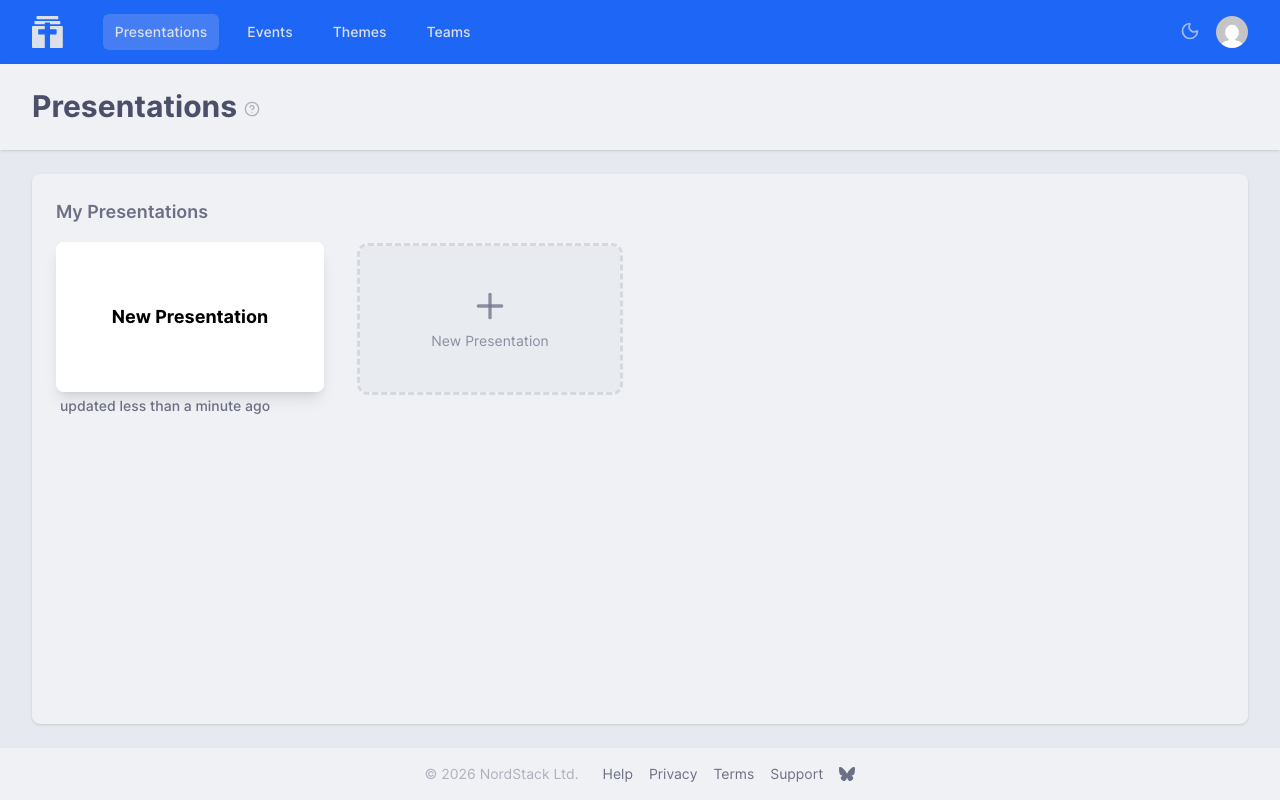
Click the New Presentation button on the Presentations page and give your presentation a name. You'll be taken straight into the editor, where you can start typing your content.
Chapel Screen automatically divides your text into presentation points — individual navigation points that your audience will see one at a time. Each sentence becomes a presentation point, so you can reveal your content at your own pace.
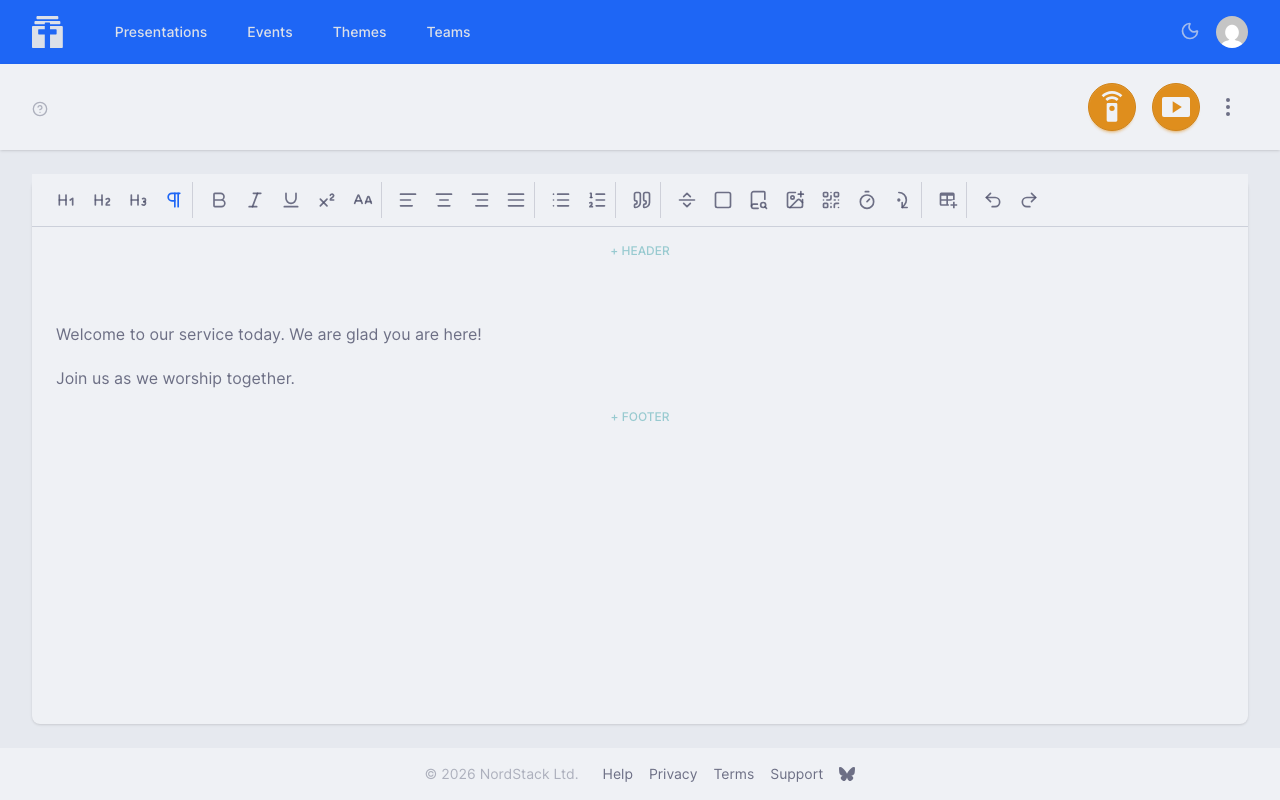
When you're ready to present, choose Present to open the controller and navigate through your presentation points, and View to display them on a screen. You'll find more detail on this in the Controlling & Viewing section.
Installing Chapel Screen as an App
Chapel Screen is a web app you can install on your device, giving it its own window and icon — handy for a dedicated projection or operator machine.
- Desktop (Chrome / Edge) — open Chapel Screen, then use the install icon in the address bar (or the browser menu's Install / Add to Dock entry).
- Android — open the browser menu and choose Add to Home screen (or Install app).
- iPhone / iPad (Safari) — tap the share button and choose Add to Home Screen.
The installed app opens straight to your presentations and supports push notifications for team chat.
What's Next
From here, you might want to explore:
- Creating Presentations — formatting, page breaks, and more editor features
- Custom Themes — make your presentations look the way you want
- Teams — invite others and collaborate in real time
- AI Assistants — let Claude, ChatGPT or another assistant do the work for you